Frequently asked questions
Here we collect answers to the questions our support team gets most often.
Russia has started blocking Shadowsocks. Will Bebra keep working?
Yes, our apps work. Besides Shadowsocks, Bebra uses VLESS + REALITY, XHTTP and Hysteria2. The app picks the protocol and the fastest route for you, and if a route stops working, it switches to another one by itself.
Our website may get blocked. If that happens, we’ll move to another domain. If our site stops opening, contact our support (the links are in the app) to get its current address.
Is it legal to use a VPN in Russia?
Yes. The law does not prohibit individuals from using a VPN. The requirements apply to VPN services themselves, not to their users.
Do you keep logs?
We don’t keep logs of the websites you visit and don’t store the contents of your traffic. The technical data we need to run the service and protect it from abuse, and how long we keep it, are described in our Privacy Policy.
How many devices can I connect?
There is no limit on the number of devices.
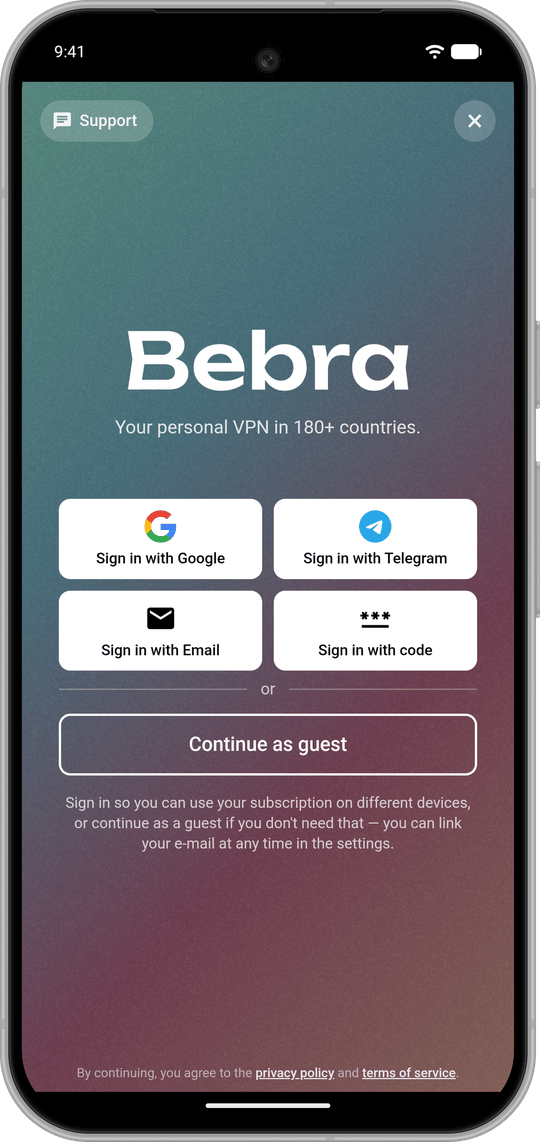
You can sign in to your account on as many devices as you like.
Can I share my subscription with family and friends?
Yes. Just sign in to your Bebra account in the app on their device.
Is there a traffic limit?
No, there are no traffic limits.
How many IP addresses does the subscription include?
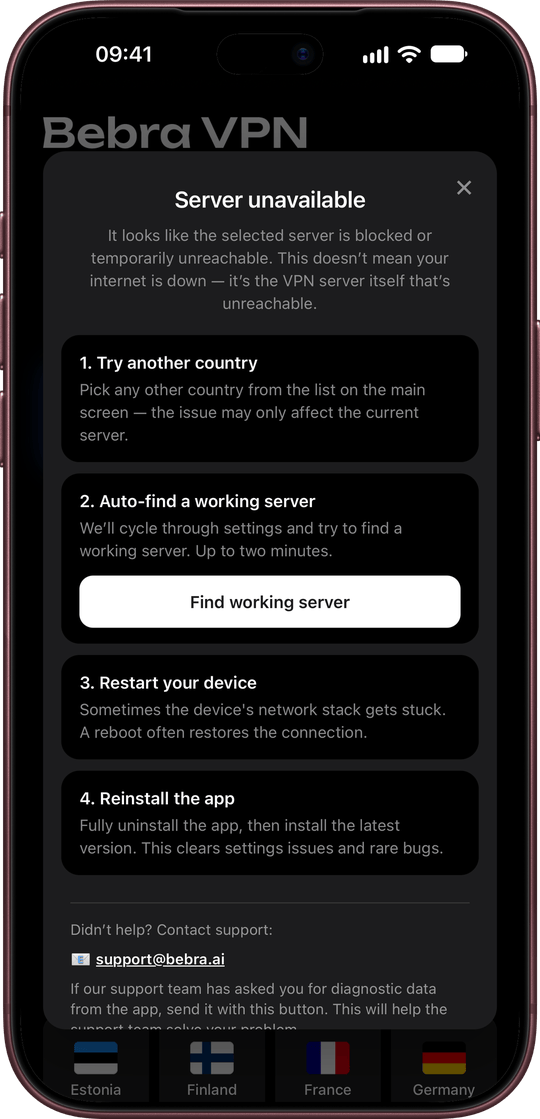
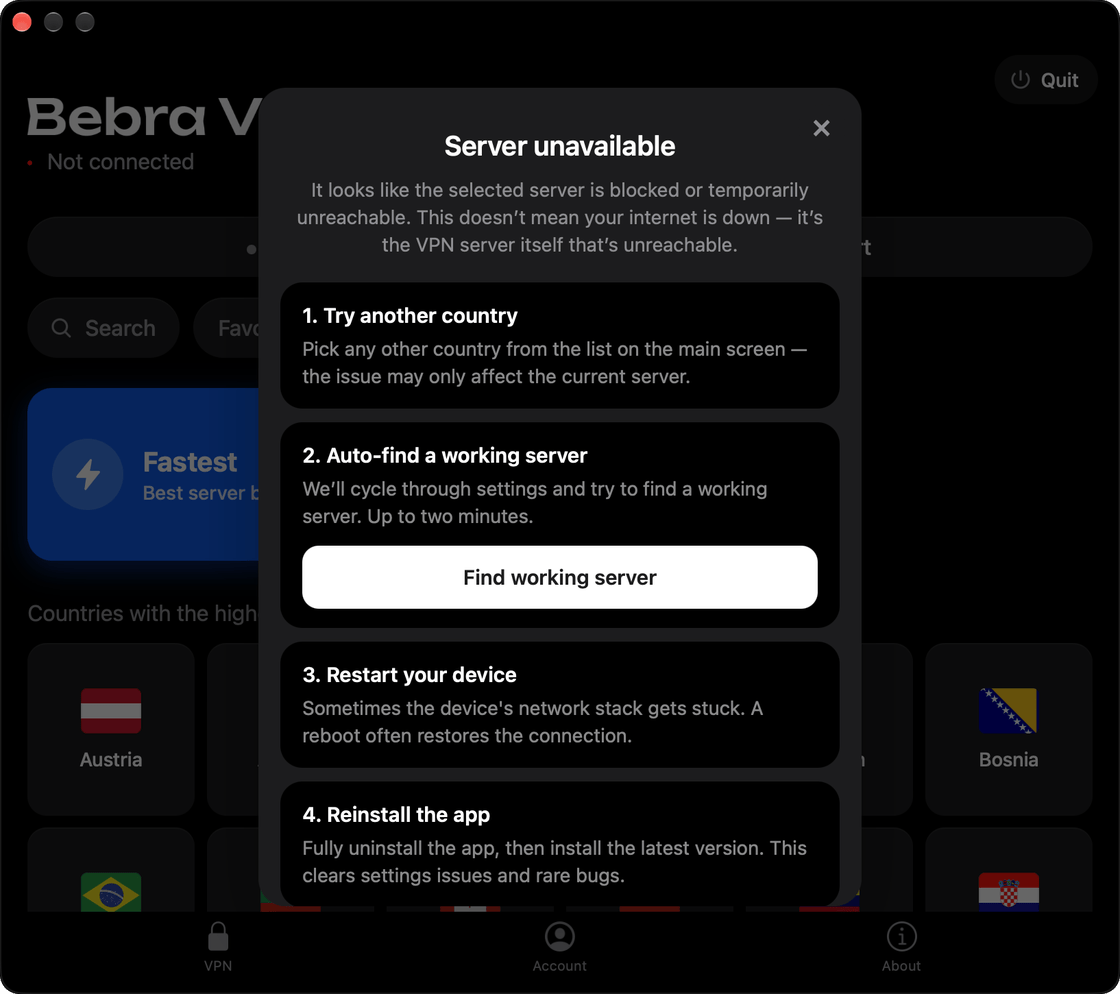
More than one. Each location has several routes: if one stops working, the app switches to another by itself. And the Find working server button in the app gets fresh IPs.
Does Bebra work in Turkmenistan?
Yes, Bebra works in Turkmenistan.